Posts

Showing posts matching the search for Calendar

Calendar

Image
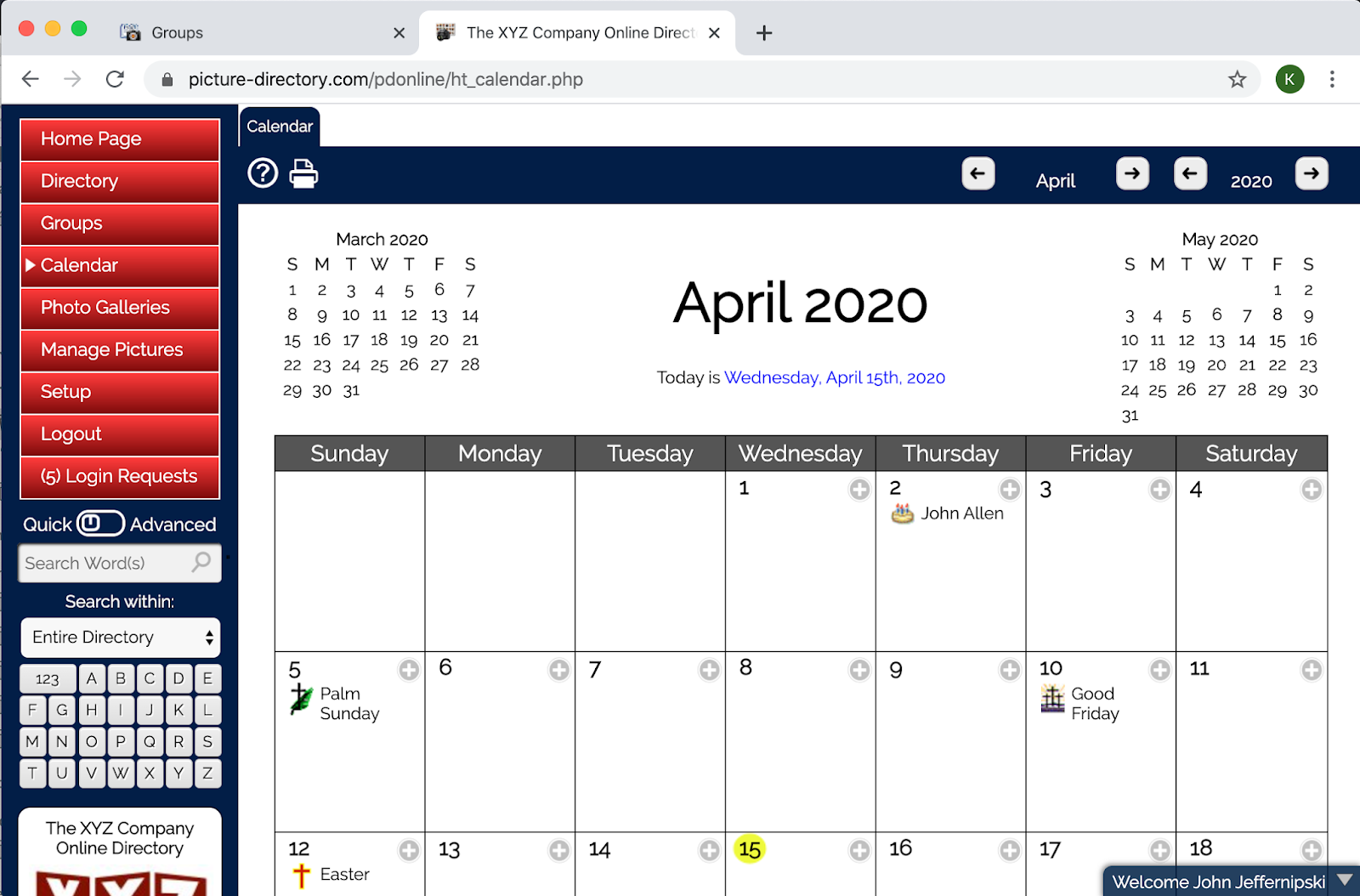
Using the Calendar The calendar page shows a monthly calendar of events, appointments, meetings, birthdays and anniversaries. Navigating to a given month can be done with the buttons on the top right or hovering over the month or year a selecting a different one. Birthdays and Anniversaries can be configured to not show the year in the Setup preferences for your organization. The calendar can be printed by clicking on the printer icon at the top of the page. Click the add icon , fill out the Add Calendar Event form to add a new calendar event. The calendar events can be for any given duration, can be recurring. There are three occurrence fields to accommodate all sorts of recurrences. Examples: Every Thursday of every 2 Weeks 1st Tuesday of every November Every Day of every Week A privacy level can be set. The default is private to the organization, but they can be private to the user as well. Or, if desired, even public, meaning if your organization's director...

Setup - Modify My Organization

The Update My Organization page allows you to customize the configuration of your directory. Contact Information Specify the organization name, contact name, address, telephone number and email address. This is important to have a correct email address and telephone number so that you can receive a reminder and invoice when you subscription is due for renewal to prevent it from expiring. Home Page URL This option controls where the Home Page menu option links to. By default it is the PD Online™ Home Page. But, it can be any valid URL including a URL back to your own website. Custom Directory Name You can give your directory, a custom name. By default the name is your organization name and online directory. (i.e. XYZ Company Online Directory). Directory URL This is the URL that you provide other's within your organization to access your directory. Picture to Show on Welcome and Login Page You can upload your Organization's Logo or other picture and it will be displayed...

Sidebar - Menu Options

Image
The sidebar contains Menu Options , Search Area , and Notice Box . This page describes the menu options. Menu Options The Menu Options are: Home Page - Takes you to the page that you've configured as the home page. The page can be a link back to your website or any a URL within Picture-Directory Online. Groups - A list of directory groups that you have set up. A directory entry can belong to multiple groups. Calendar - A monthly calendar of events, appointments, birthdays, etc that you have configured. Photo Galleries - Photo Galleries that you have set up. Your can create multiple photo directories for things like special events within your organization. Manage Pictures - This is where the pictures that you have associated to a directory entry can be managed. Setup - This is where you configure your directory. Here you maintain Users, Grant or Deny Login Requests, Set up Custom Fields, View and Configure your Organization Preferences, Import Directory Data, and Expo...

Directory Entry

Image
Directory Add/Edit The entry form is divided into multiples sections: Name Name fields (i.e. First Name, Last Name, Job Title, Nickname, etc.) There is also a Picture File Name field to enter the name of a picture that was uploaded from the Manage Pictures page. Sort this entry by determines how the record is sorted in the search results. The field chosen here must not be blank. Address Information There are two types of addresses, Home and Office. Choose the primary address by selecting one from the The primary address for this entry is the . The primary address is the address that is shown in card view and the top section of the detail page. Personal Information Personal Information can be entered about the directory entry's spouse and children. This information's privacy can be controlled by the administrator. Birthdays and Anniversaries When a Birthday or Anniversary is entered it will automatically be added to the calendar. Birthday and Anniversary year can ...

Welcome Page

Image
The Home Page (aka Welcome Page) has a picture at the top that you can modify via Settings » My Organization The text below it is static and is as shown here: Directory Searching: Directory searching input boxes are below the menu options on the left sidebar. Directory searching is available on most all pages within the system and provides a convenient way to search your directory. Directory searching comes in two varieties, Quick Search and Advanced Search. Your directory administrator configures which search variety is the default one that you start with when you login. The switch search icon switches your search variety between Quick Search and Advanced Search as defined here: Quick Search: Quick Search provides a simple and convenient way to search your directory. The list box below Quick Search allows you to search either the Entire Directory or a subset of your directory for those directory entries belonging to a specific group ...

Directory-Navigation

Image
Navigating through the directory is easy. The available actions differ depending on the page you are on (i.e. Directory Page, Groups, Calendar, etc, but the same familiar icons are used as defined here: Page Navigation There are four icons on the top right of the page for navigating though the pages of your directory on any page where page navigation is needed: - Begin - Goto to first page of results - Previous - Goto to previous page of results - Next - Goto to next page of results - Last - Goto to last page of results Action Icons Actions Icon - Actions such as edit, delete, copy, view details or stashed in the action icon . Hovering over (or clicking on ) this icon shows the action menu choices which are: - Close the Actions Menu (closes automatically if using a mouse hover away from the menu) - Edit Icon - Brings up the Edit Record Window to make changes to the record. - Duplicate the record associated to this action and Brings up an Add window...