Posts

Showing posts matching the search for Directory

Setup - Modify My Organization

The Update My Organization page allows you to customize the configuration of your directory. Contact Information Specify the organization name, contact name, address, telephone number and email address. This is important to have a correct email address and telephone number so that you can receive a reminder and invoice when you subscription is due for renewal to prevent it from expiring. Home Page URL This option controls where the Home Page menu option links to. By default it is the PD Online™ Home Page. But, it can be any valid URL including a URL back to your own website. Custom Directory Name You can give your directory, a custom name. By default the name is your organization name and online directory. (i.e. XYZ Company Online Directory). Directory URL This is the URL that you provide other's within your organization to access your directory. Picture to Show on Welcome and Login Page You can upload your Organization's Logo or other picture and it will be displayed...

Welcome Page

Image
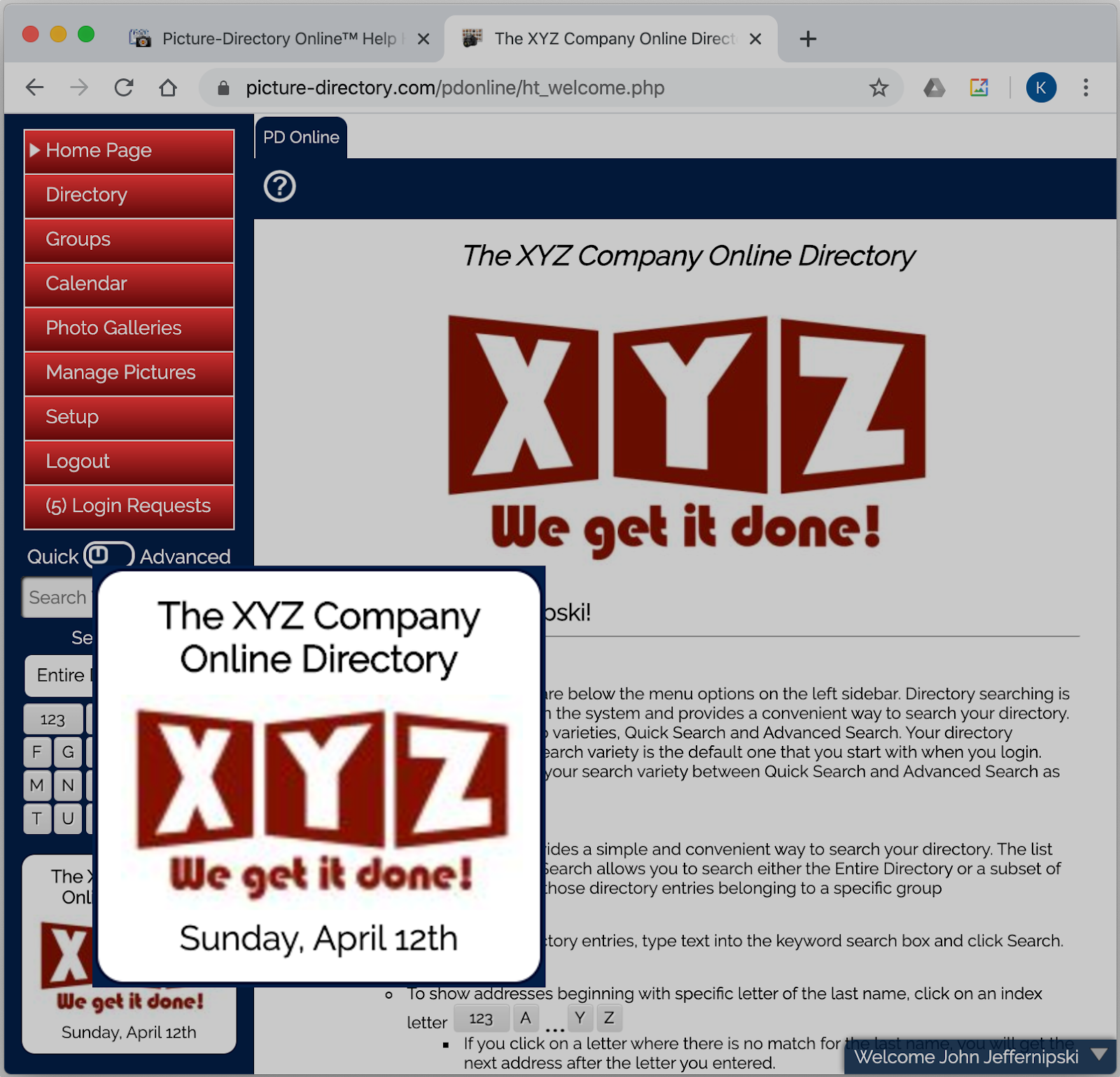
The Home Page (aka Welcome Page) has a picture at the top that you can modify via Settings » My Organization The text below it is static and is as shown here: Directory Searching: Directory searching input boxes are below the menu options on the left sidebar. Directory searching is available on most all pages within the system and provides a convenient way to search your directory. Directory searching comes in two varieties, Quick Search and Advanced Search. Your directory administrator configures which search variety is the default one that you start with when you login. The switch search icon switches your search variety between Quick Search and Advanced Search as defined here: Quick Search: Quick Search provides a simple and convenient way to search your directory. The list box below Quick Search allows you to search either the Entire Directory or a subset of your directory for those directory entries belonging to a specific group ...

Directory Entry

Image
Directory Add/Edit The entry form is divided into multiples sections: Name Name fields (i.e. First Name, Last Name, Job Title, Nickname, etc.) There is also a Picture File Name field to enter the name of a picture that was uploaded from the Manage Pictures page. Sort this entry by determines how the record is sorted in the search results. The field chosen here must not be blank. Address Information There are two types of addresses, Home and Office. Choose the primary address by selecting one from the The primary address for this entry is the . The primary address is the address that is shown in card view and the top section of the detail page. Personal Information Personal Information can be entered about the directory entry's spouse and children. This information's privacy can be controlled by the administrator. Birthdays and Anniversaries When a Birthday or Anniversary is entered it will automatically be added to the calendar. Birthday and Anniversary year can ...

Picture-Directory Online™

Image
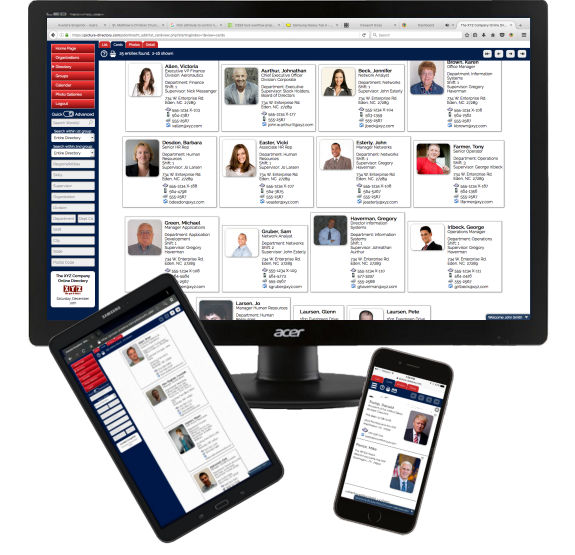
Picture-Directory Online™ is an online directory service to search, browse, create, print and maintain your directory on the internet from your smartphone, tablet, desktop or any device. Create a Link from your website to your online directory hosted with Picture-Directory Online™. Your information can be as open or secure as you choose! Anywhere, Anytime access to your directory! Intelligent Responsive Design friendly for any type of device: Smart Phone, Tablet, and Desktop Great Search Engine Searchable by any field Fully secure so no one outside of your organization can access your directy unless you allow them to. Can be controlled by security privileges which Users can maintain the data and records can be marked invidually as private (not viewable publicly) or marked system wide as private or public. By default it is private Categorize your directory into a numerous groups Is designed to create membership directories with or without pictures. Is useful any organization, ...

Setup - Users

Image
The following screen is used to add a new user access to your organization's directory. The add user screen is used for creating a profile for a new user of your directory. The first four fields have an asterisk ( * ) associated with the field. The * designates they are required fields. When you key in a Username, the system will check all directories on the Picture-Directory Online server for a unique username. If the name you have chosen is not unique, you will receive an error message. You must then try a different username until you are successful. You must check the "User Can Login" box to allow the user access to your directory. The other check boxes can be used if you so desire to have certain users access to those functions. This has to be determined by the security structure/procedures you setup for maintaining your directory. Adding a User Click on the Add icon at the top of the list. The Username must be unique to the entire web site like Goog...

Sidebar - Menu Options

Image
The sidebar contains Menu Options , Search Area , and Notice Box . This page describes the menu options. Menu Options The Menu Options are: Home Page - Takes you to the page that you've configured as the home page. The page can be a link back to your website or any a URL within Picture-Directory Online. Groups - A list of directory groups that you have set up. A directory entry can belong to multiple groups. Calendar - A monthly calendar of events, appointments, birthdays, etc that you have configured. Photo Galleries - Photo Galleries that you have set up. Your can create multiple photo directories for things like special events within your organization. Manage Pictures - This is where the pictures that you have associated to a directory entry can be managed. Setup - This is where you configure your directory. Here you maintain Users, Grant or Deny Login Requests, Set up Custom Fields, View and Configure your Organization Preferences, Import Directory Data, and Expo...

Manage Pictures

Image
The Manage Pictures page contains all of the directory pictures that you've uploaded. You can add, update and delete pictures here (in addition to assigning them to a directory entry from the directory detail page). Here, you can upload multiple pictures at the same time, by: Clicking on the add icon: This brings up the dialog on your computer or other device to select photos Select pictures from your device to upload. You can upload up to 10 photos at a time. Click Done (or OK) depending on your device. Photos are uploaded to your site It is best to resize your photos before uploading. Keep the photos reasonably sized to save yourself time in uploading. Typically, 1 MP (i.e. a square photo 1024px x 1024px)is more than adequate. The photos do not need to be the same dimensions, but a uniform directory does look more professional. There are two different indicators, that tell you whether the given photo is associated to a directory entry or not. - The picture is asso...

Directory-Navigation

Image
Navigating through the directory is easy. The available actions differ depending on the page you are on (i.e. Directory Page, Groups, Calendar, etc, but the same familiar icons are used as defined here: Page Navigation There are four icons on the top right of the page for navigating though the pages of your directory on any page where page navigation is needed: - Begin - Goto to first page of results - Previous - Goto to previous page of results - Next - Goto to next page of results - Last - Goto to last page of results Action Icons Actions Icon - Actions such as edit, delete, copy, view details or stashed in the action icon . Hovering over (or clicking on ) this icon shows the action menu choices which are: - Close the Actions Menu (closes automatically if using a mouse hover away from the menu) - Edit Icon - Brings up the Edit Record Window to make changes to the record. - Duplicate the record associated to this action and Brings up an Add window...

Login Requests

Image
By default your directory is set up as private to your organization. And the directory entries, by default are private as well. You're directory can still be public, but all of your directory entries private. If you choose, you can make your directory public (keeping the directory entries private) and this will add an option to the login screen for which a user can click on the Please create a login for me link and fill out a form request. When this is submitted it will be sent to the administrator for the organization and the administrator can approve or deny the request from this page.

Directory Views

Image
The Online Directory is the heart of Picture-Directory Online™. There are for different views for the directory. Cards View Cards view shows the directory entries like business cards and most of the detail of the details view. The information displayed is configurable. List View Shows as a list with configurable columns. (i.e. Name, Organization, Address, Primary Phone, Email) Photos View Photos View shows just the name and a photo. This view is good for getting to know faces of those within your organization.

Groups

Image
A directory entry can belong to one or more groups. When you search, you can search the entire directory or just within a group. You see the groups that a given directory entry belongs to when you view the directory entry on the Detail Page (Detail Tab) of the directory.

Setup (System Preferences)

Image
Setup (System Preferences) After selecting the setup option you are shown the tabs above. These tabs are for the following: Users - Maintain your organization's users. Login Requests - Users can request a login and you can approve or deny from this tab. Custom Fields - Define custom fields for your directory. My Organization - Change settings that control your directory. Import - Import data into your directory. Export - Export data from your directory.

Sidebar - Search Area

Image
The Sidebar Search Area is where you search the directory. The search toggle switch controls whether it's a: Quick - Search (with a search box, search within group, and alphabet buttons) Advanced - Search (Search words, two search within groups, and configurable fields within the directory (i.e. Name, City, State, Skills, etc). The search area is always in the Sidebar, so you can search the directory no matter what page you are on.

Calendar

Image
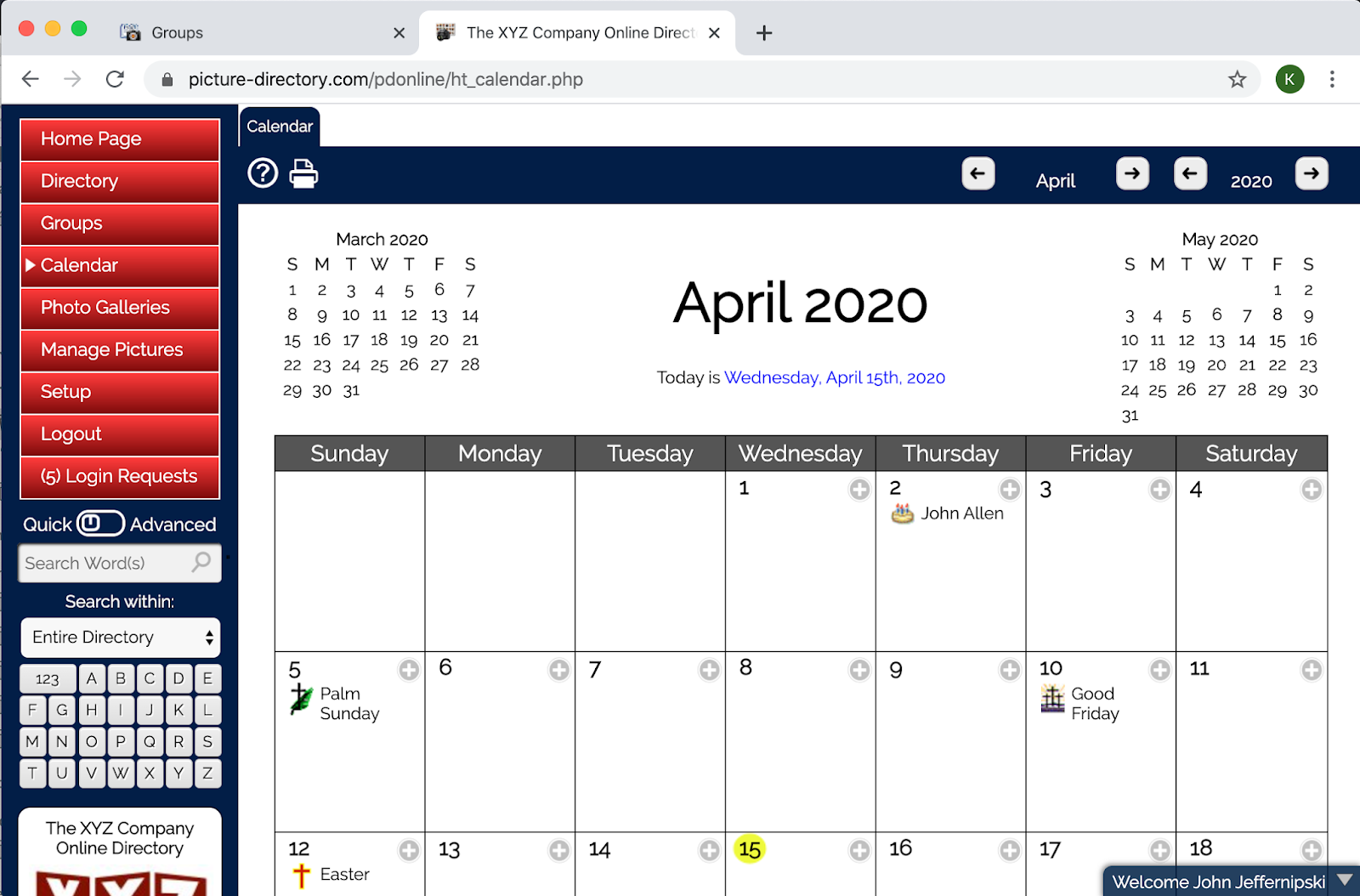
Using the Calendar The calendar page shows a monthly calendar of events, appointments, meetings, birthdays and anniversaries. Navigating to a given month can be done with the buttons on the top right or hovering over the month or year a selecting a different one. Birthdays and Anniversaries can be configured to not show the year in the Setup preferences for your organization. The calendar can be printed by clicking on the printer icon at the top of the page. Click the add icon , fill out the Add Calendar Event form to add a new calendar event. The calendar events can be for any given duration, can be recurring. There are three occurrence fields to accommodate all sorts of recurrences. Examples: Every Thursday of every 2 Weeks 1st Tuesday of every November Every Day of every Week A privacy level can be set. The default is private to the organization, but they can be private to the user as well. Or, if desired, even public, meaning if your organization's director...

Sidebar - Notfication Area

Image
The Sidebar Notification Area shows your organization's name (so the user always knows what directory they are logged into, and the date. Optionally in can include a scripture verse which can be toggled on or off in Setup » My Organization » Modify .

Photo Galleries

The Photo Galleries feature is a very simplistic slide show. It's limited in functionality, although it has a lot of possibilities that may be implemented at some future time. The photo galleries are not related to directory entries at all.